Having a fast and reliable internet connection is important in our daily lives. Whether we are watching videos, browsing websites, playing online games, attending online meetings, or downloading files, we all want a smooth internet experience. But how do we know whether our internet connection is actually fast?
This is where a speed test becomes useful.
An internet speed test helps us check how fast our internet connection is working. It shows important information such as download speed, upload speed, ping, and sometimes jitter. These results help us understand whether our internet connection is good enough for our daily activities.
In this guide, I will explain everything about speed tests, how they work, how to check your internet speed, and what you can do to improve your connection.
What Is a Speed Test?
A speed test is an online tool that measures the performance of your internet connection. It checks how quickly data travels between your device and a test server.
In simple words, a speed test tells you how fast your internet is.
You can use an internet speed test on your computer, laptop, smartphone, or tablet. Most online speed testing tools are free and do not require any special software.
Some popular speed testing websites include:
- Speedtest by Ookla
- Fast.com
- Google Internet Speed Test
- Cloudflare Speed Test
- Measurement Lab (M-Lab)
These tools help users understand their internet performance within a few seconds.
Why Is an Internet Speed Test Important?
Many people pay for high-speed internet plans but still experience slow connections. Sometimes the problem comes from the WiFi router, network congestion, weak signals, or the internet service provider.
Running a speed test can help identify possible connection problems.
Here are some important reasons to check your internet speed:
1. Check Your Download Speed
Download speed tells you how quickly your device receives data from the internet. It is important when streaming videos, downloading files, browsing websites, and using online applications.
2. Check Your Upload Speed
Upload speed measures how quickly your device sends data to the internet. It is especially useful for video calls, uploading photos, sharing files, and live streaming.
3. Understand Your Ping
Ping measures how long it takes for data to travel to a server and return. A lower ping usually means a more responsive connection.
4. Find Internet Connection Problems
If your internet feels slow, a speed test can help you compare your actual speed with the speed promised by your internet provider.
5. Check WiFi Performance
You can test your WiFi connection in different rooms to understand whether your router provides strong and consistent coverage.
How to Perform a Speed Test?
Checking your internet speed is very easy. You do not need technical knowledge or special equipment.
Follow these simple steps:
- Open your web browser on your computer or smartphone.
- Visit a trusted speed testing website.
- Click the Start or Go button.
- Wait while the tool checks your internet connection.
- Review your download speed, upload speed, and ping results.
The test usually takes less than a minute, although the time can vary depending on the testing tool and connection.
For more accurate results, close unnecessary applications and downloads before starting the test.
Understanding Speed Test Results
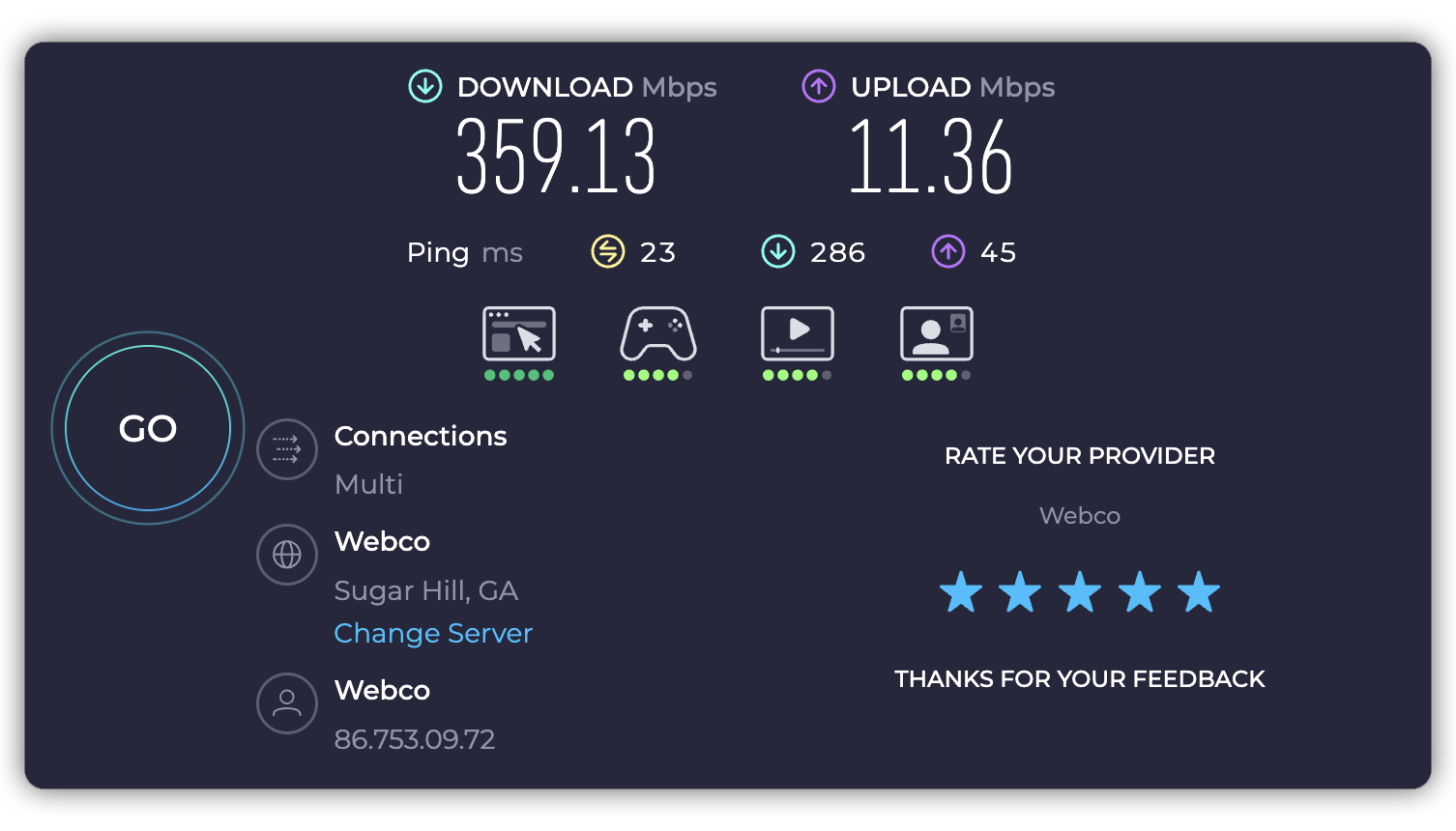
After completing a speed test, you will see several numbers. Each number represents a different part of your internet connection.
Let’s understand the most important results.
1. Download Speed
Download speed measures how quickly information comes from the internet to your device.
It is generally measured in Mbps (Megabits per second).
A higher download speed usually means faster file downloads and smoother video streaming.
For example:
- 5 Mbps: Basic browsing and some video streaming.
- 25 Mbps: Suitable for many HD streaming activities.
- 50 Mbps: Good for multiple everyday internet activities.
- 100 Mbps: Suitable for households with several connected devices.
- 300 Mbps or more: Useful for heavy downloads and multiple high-bandwidth activities.
These are general examples, not guaranteed requirements. Actual performance depends on video quality, the number of users, and other factors.
2. Upload Speed
Upload speed measures how quickly your device sends information to the internet.
It is important for:
- Video conferencing
- Sending large email attachments
- Uploading videos and photos
- Online gaming communication
- Live streaming
- Cloud backups
If your upload speed is too low, other people may experience difficulty hearing or seeing you during video calls.
3. Ping (Latency)
Ping, also called latency, measures the time required for data to travel between your device and a server and return.
It is measured in milliseconds (ms).
A lower ping generally provides a faster response.
For example:
- Below 20 ms: Excellent for responsive online activities.
- 20–50 ms: Generally very good.
- 50–100 ms: Usually acceptable for many activities.
- Above 100 ms: You may notice delays in some real-time applications.
Ping is particularly important for online gaming and video calls.
4. Jitter
Jitter measures how much latency changes over time.
A stable connection has relatively consistent latency. High jitter can cause interruptions in online gaming, voice calls, and video conferencing.
Lower jitter is generally better.
5. Packet Loss
Packet loss happens when some data packets fail to reach their destination.
It can cause lag, interrupted calls, buffering, and connection problems.
For most internet activities, you want packet loss to be as close to zero as possible.
What Is a Good Internet Speed?
A good internet speed depends on how you use the internet and how many devices are connected to your network.
Here is a general guide:
| Internet Activity | Suggested Download Speed |
| Basic browsing | 1–5 Mbps |
| Social media | 3–10 Mbps |
| HD video streaming | 5–10 Mbps |
| 4K video streaming | 15–25 Mbps |
| Online gaming | 10–25 Mbps |
| Video conferencing | 5–10 Mbps |
| Multiple connected devices | 50–100+ Mbps |
Remember that these are approximate guidelines. Some services require different speeds, and online gaming performance also depends heavily on latency and stability.
WiFi Speed Test vs. Mobile Data Speed Test
You can perform a speed test using different types of internet connections.
WiFi Speed Test
A WiFi speed test measures the performance of your wireless connection through a router.
Your results can be affected by:
- Distance from the router
- Walls and other obstacles
- Router quality
- WiFi frequency band
- Number of connected devices
- Wireless interference
For better results, try testing near your router.
Mobile Data Speed Test
A mobile data speed test measures your internet performance through your cellular network, such as 4G or 5G.
Mobile internet speed can change depending on:
- Network coverage
- Signal strength
- Network congestion
- Your mobile operator
- Your location
- Your phone’s network capabilities
You can compare results in different locations to understand how your mobile internet performs.
Best Websites to Check Internet Speed
There are several reliable websites that allow you to test your internet connection.
1. Speedtest by Ookla
Speedtest by Ookla is one of the most popular internet speed testing services. It provides download speed, upload speed, ping, and other connection details.
2. Fast.com
Fast.com is a simple internet speed testing website powered by Netflix. It mainly focuses on download speed, with additional information available through its settings.
3. Google Speed Test
You can search for an internet speed test on Google to find available testing options. Availability may depend on your location and the supported testing provider.
4. Cloudflare Speed Test
Cloudflare’s speed test provides information about download speed, upload speed, latency, and other network performance measurements.
5. M-Lab Speed Test
Measurement Lab provides internet performance testing tools that can help users measure their network connection.
Why Is My Internet Speed Slow?
Sometimes your internet connection may be slower than expected. There can be several reasons behind this problem.
Here are some common causes:
1. Too Many Connected Devices
When multiple people use the same internet connection, available bandwidth is shared between devices.
2. Weak WiFi Signal
If you are far away from your router, your WiFi signal may become weak and reduce internet performance.
3. Old Router
An outdated router may not support the speeds provided by your internet package.
4. Background Downloads
Applications and devices may download updates or files in the background without you noticing.
5. Network Congestion
During busy hours, many users may share the same network infrastructure, which can reduce internet speed.
6. Internet Service Provider Issues
Sometimes the problem may come from your internet service provider due to maintenance, technical issues, or network problems.
How to Improve Your Internet Speed
If your speed test results are lower than expected, try these simple solutions.
- Restart your WiFi router and modem.
- Place your router in a central and open location.
- Disconnect devices that are not being used.
- Use a 5 GHz or 6 GHz WiFi band when supported and suitable.
- Update your router firmware.
- Close unnecessary background applications.
- Use an Ethernet cable for a more stable connection.
- Keep your computer and smartphone software updated.
- Contact your internet provider if the problem continues.
These steps can improve your connection, depending on the actual cause of the problem.
How to Get Accurate Speed Test Results
A speed test is only useful when you perform it correctly. Different conditions can affect your results.
Here are some tips to get more accurate measurements:
- Close unnecessary browser tabs and applications.
- Stop active downloads and uploads.
- Disconnect devices that are using heavy internet bandwidth.
- Test near your WiFi router.
- Use an Ethernet cable when possible.
- Run multiple tests at different times.
- Select a nearby test server when the tool allows it.
You should also compare your results with the speed package provided by your internet service provider.
Does a Speed Test Use Internet Data?
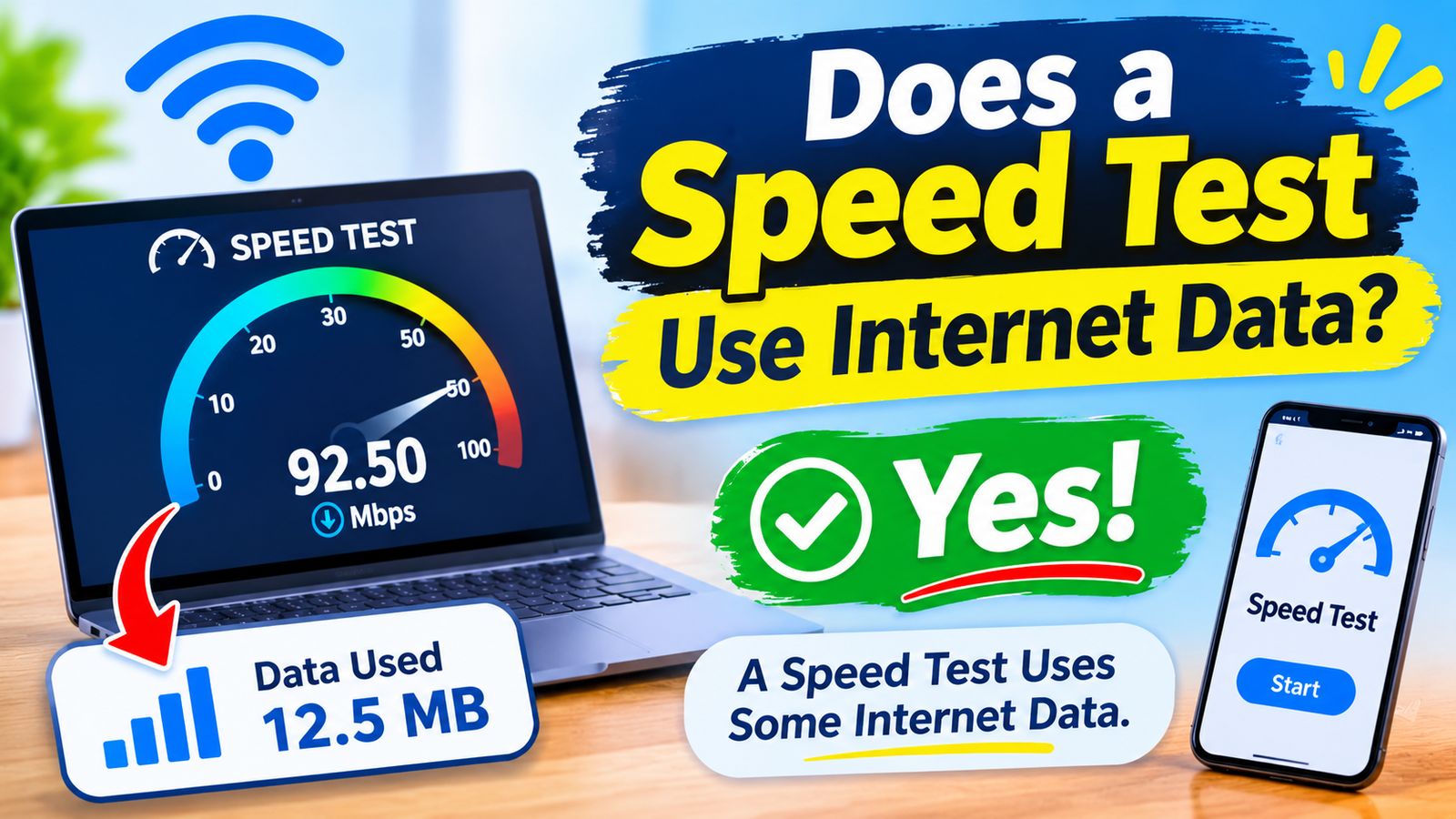
Yes, performing a speed test uses internet data.
During a test, the testing tool downloads and uploads small or sometimes large amounts of data to measure your connection performance.
The amount of data depends on the testing website and your internet speed.
If you have a limited mobile data package, remember that repeated speed tests can use a noticeable amount of data.
Can a Speed Test Improve Internet Speed?
No, a speed test does not directly increase your internet speed.
Its main purpose is to measure your connection performance.
However, the results can help you identify possible problems. After understanding the results, you can take steps to improve your WiFi setup, router performance, or internet package.
Is an Online Speed Test Accurate?
Most popular speed testing websites provide useful measurements, but results may not always represent the full performance of your internet connection.
Factors such as server distance, WiFi interference, device limitations, network congestion, and background applications can affect the results.
For a better understanding, use more than one testing service and perform multiple tests.
Final Thoughts
A speed test is one of the easiest ways to understand your internet connection. It helps you check download speed, upload speed, ping, jitter, and overall network performance.
Whether you use WiFi, broadband, or mobile data, regularly checking your internet speed can help you identify connection problems and make better decisions about your internet service.
My recommendation is to use a trusted speed testing website, perform multiple tests, and compare the results with your internet package. If your connection is consistently slower than expected, contact your internet service provider for support.
A good internet connection makes everyday online activities easier, faster, and more enjoyable.
Frequently Asked Questions (FAQs)
1. What is a speed test?
A speed test is an online tool that measures your internet connection’s download speed, upload speed, ping, and sometimes other performance details.
2. How can I check my internet speed?
Visit a website such as Speedtest.net or Fast.com and click the Start or Go button. The tool will measure your internet connection automatically.
3. What is a good internet speed?
For many households, 50–100 Mbps is a useful starting point. However, the ideal speed depends on the number of connected devices and your online activities.
4. What is the difference between download and upload speed?
Download speed measures how quickly your device receives data from the internet, while upload speed measures how quickly your device sends data to the internet.
5. What does ping mean in a speed test?
Ping measures the time it takes for data to travel to a server and return. It is measured in milliseconds (ms). Lower ping is generally better.
6. Is 100 Mbps internet speed good?
Yes, 100 Mbps is generally good for everyday browsing, HD streaming, video calls, and multiple connected devices, depending on usage.
7. Why is my WiFi speed slower than my internet package?
Your WiFi speed may be affected by router quality, distance, walls, interference, connected devices, and network congestion.
8. How often should I perform a speed test?
You can perform a speed test whenever you notice slow internet performance. Testing at different times can also help you understand your connection’s consistency.
9. Does a speed test work on mobile phones?
Yes, most popular speed testing websites work on Android and iPhone devices through a web browser. Some services also offer mobile applications.
10. Which is the best website for an internet speed test?
Speedtest by Ookla, Fast.com, and Cloudflare Speed Test are popular options. You can use different services to compare your results.
11. Does a speed test consume mobile data?
Yes. Speed tests download and upload data to measure connection performance, so they can consume mobile data.
12. Can I improve my internet speed without changing my package?
Sometimes. Restarting your router, improving its placement, reducing network congestion, and using an Ethernet cable may improve your actual connection performance.
13. What is the difference between Mbps and MBps?
Mbps means megabits per second, while MBps means megabytes per second. One byte contains eight bits, so 8 Mbps is approximately equal to 1 MBps.
14. Why does my speed test show different results every time?
Internet speed can change because of network traffic, WiFi signal strength, server selection, connected devices, and other network conditions.
15. Is a free speed test safe to use?
Popular and reputable speed testing services are generally safe to use. Always visit the official website and avoid downloading unknown software.